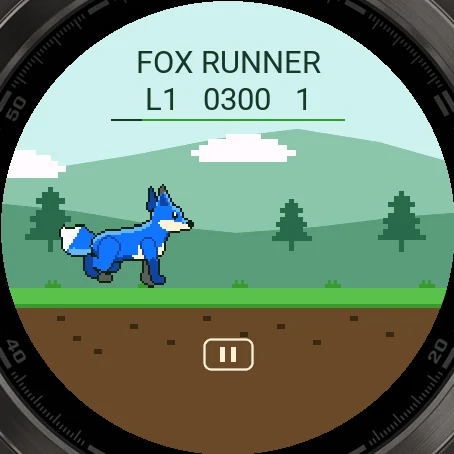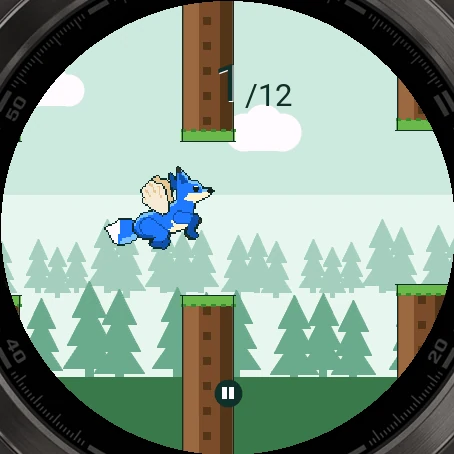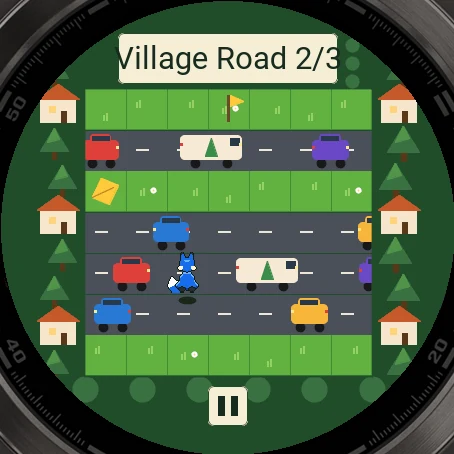

Pictures from the simulator
Hen Hunter
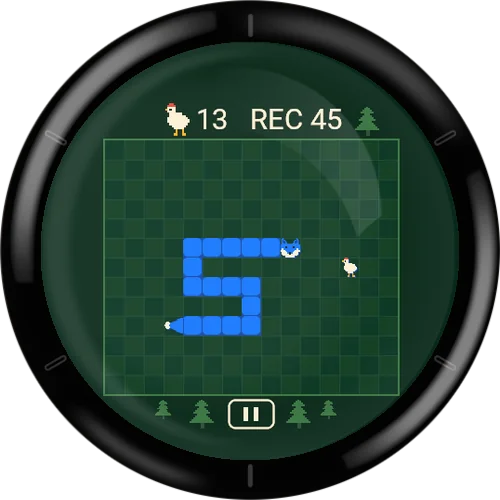
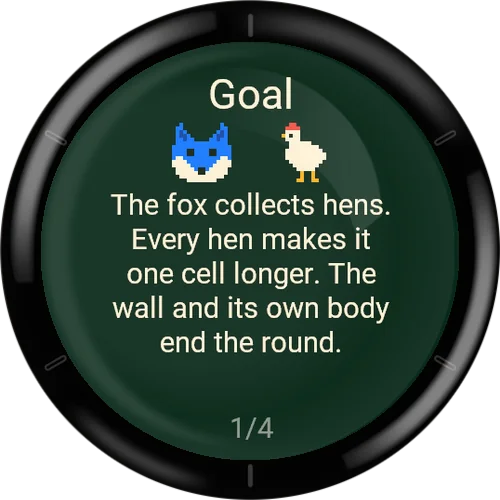
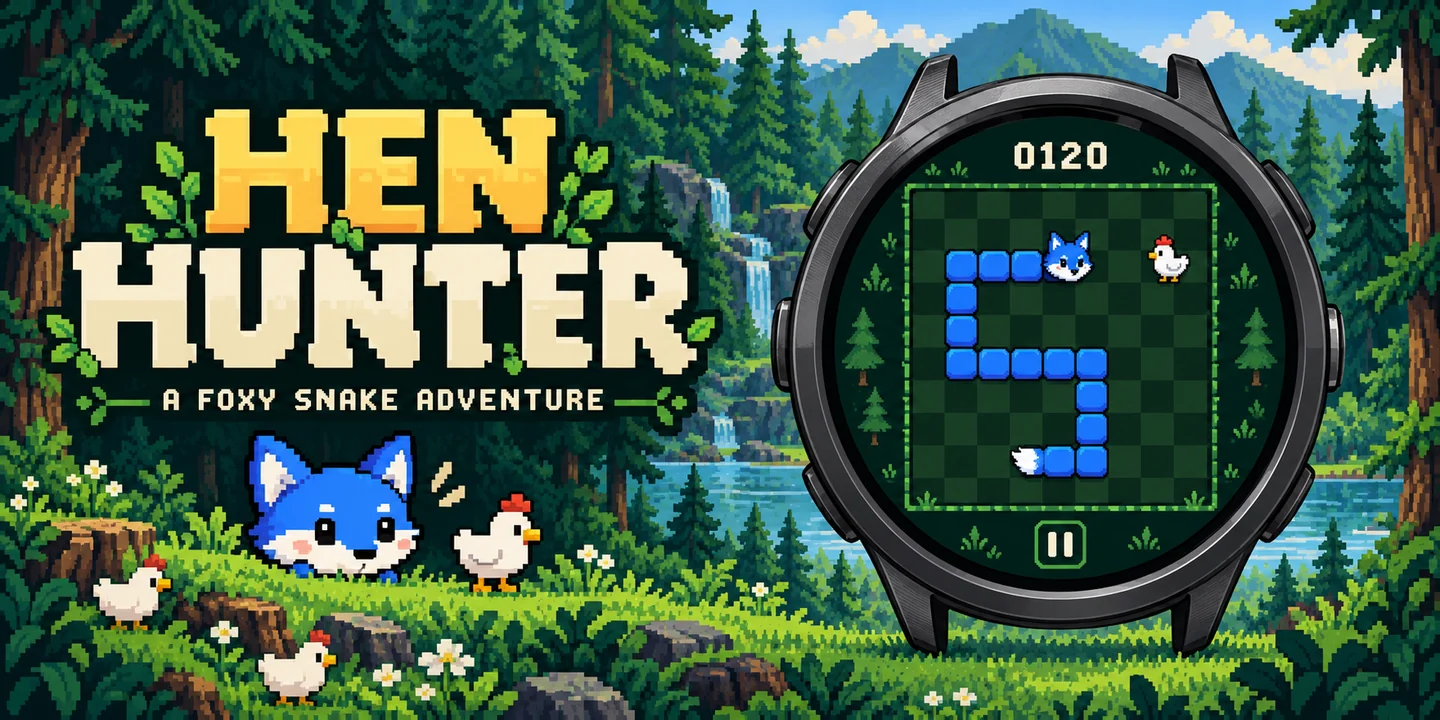
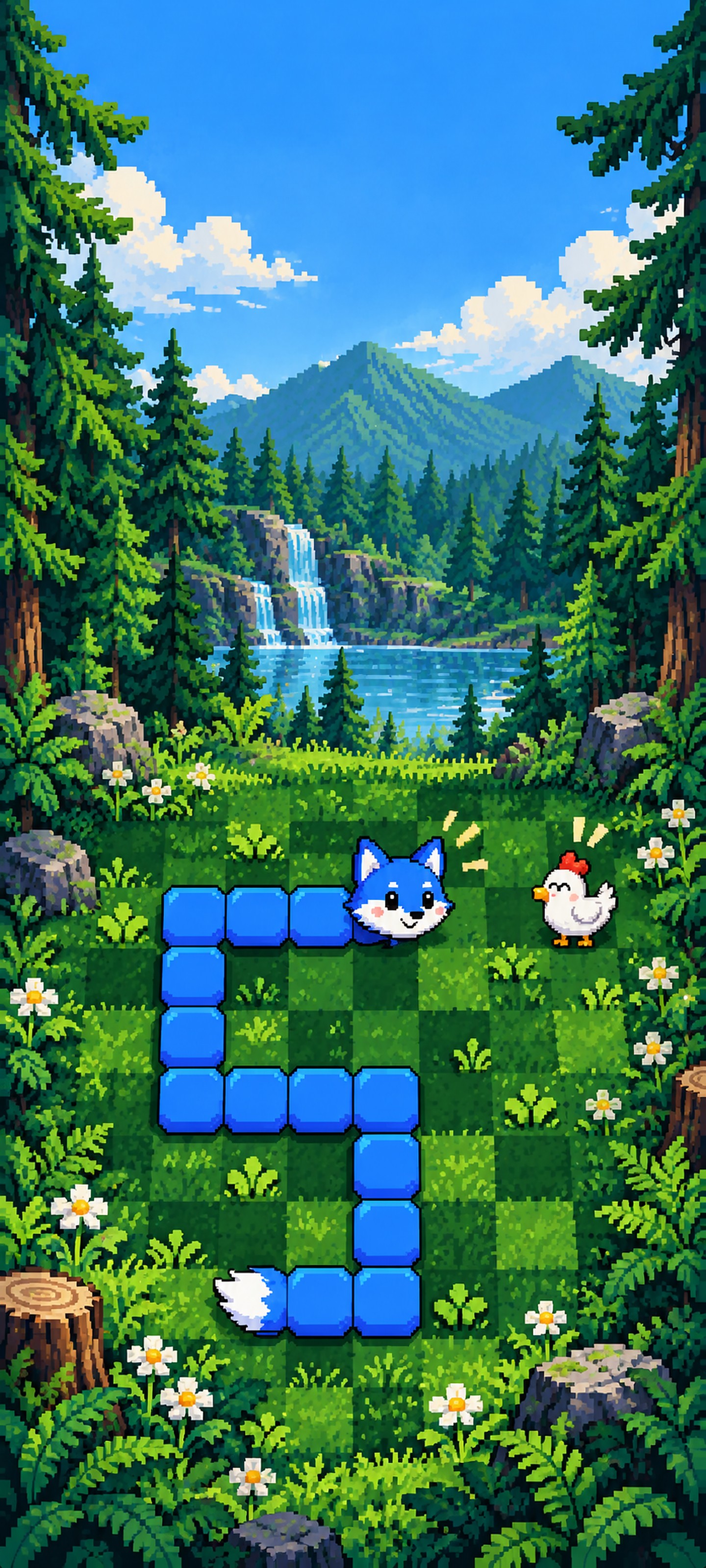
The fox roams the forest and collects hens. Every hen makes it longer – the wall and its own tail end the round.
Three speeds, speed-up, open or solid borders and a top-5 list per rule set right on the watch.
Free to play: install the game from the Connect IQ Store on your phone or in the Garmin Connect IQ app.
The watch keeps the high scores itself: top 5 per rule set, no account needed.
Free to play, happy to be supported
All my games are free. To keep programming new games I depend on donations. If you enjoy this game, I would be glad about a small contribution.
Go to the donation pageFeatures
- Classic snake on a 15 × 13 grid
- Speed, speed-up and border adjustable
- Top 5 per rule set on the watch
- Choose the fur colour
- Buttons to turn or swipe / tap
- Offline, German and English
Hen Hunter
Wallpapers
Free phone wallpapers for this game - tap one to download it (1440 x 3200).


Game guide
Everything about the game: how it is played, every menu and every setting.
- How to play
- Goal and scoring
- Rules: speed, speed-up and border
- Records
- Menus and screens
- Settings: Game
- Settings: Display
- Settings: Controls
- Small watches and missing hardware
- Tips
How to play
Hen Hunter is a snake game for your Garmin watch. The fox runs over a field of 15 x 13 cells and collects hens. It never stops: you only decide where it turns.
A round starts with a 3-2-1 countdown. The fox begins with a length of 4 cells, near the middle of the field, heading right. Exactly one hen is on the field at any time, always on a free cell. When the fox reaches it, the fox grows by one cell and a new hen appears.
With buttons: UP turns the fox left, DOWN turns it right, always relative to its current direction. SELECT (or START) pauses the game. BACK also pauses.
With a touchscreen: in Swipe mode you swipe up, down, left or right and the fox heads that way. In Tap mode you tap the left half of the screen to turn left and the right half to turn right. The band below the playing field is the pause area in both modes.
A round ends when the fox hits itself, or hits the wall if the border rule is Wall. The fox cannot turn around by 180 degrees. Only one turn is stored per step, so extra inputs before the next step are ignored. The fox may move into the cell that its tail leaves in the same step, but not when it grows in that step.
When you come back from a pause, the 3-2-1 countdown always runs first, so you never lose steps while the game is stopped.
Goal and scoring
Collect as many hens as you can. Your score is the number of hens collected in the round. The fox's length is 4 plus the number of hens.
The line above the field shows your current hens and the record (REC) of the rule set you are playing. After a round the result screen shows hens and length. If the round made it into the top 5, it says New record! (rank 1) or Rank 2 to 5.
If the fox fills the whole field, you win the round (Victory! The forest is full!). This is very hard, so most rounds end earlier.
Rules: speed, speed-up and border
Three settings define the rules of a round: Speed, Speed-up and Border. They are frozen when a round starts. If you change them during a pause, the change applies from the next round (the game shows a note).
Each rule combination has its own record list, so you can compare rounds fairly.
- Speed: Slow
- The fox takes one step every 320 ms.
- Speed: Normal
- One step every 240 ms (default).
- Speed: Fast
- One step every 170 ms.
- Speed-up
- When on, the step time is multiplied by 0.9 for every five hens collected (rounded to whole milliseconds) and never gets shorter than 110 ms. Example with Normal: 240 ms, 216 ms after 5 hens, 194 ms after 10 hens.
- Border: Wall
- Touching the edge of the field ends the round.
- Border: Open
- The fox leaves the field on one side and enters on the opposite side.
Records
Hen Hunter keeps a top 5 list for every rule set. A rule set is the combination of Speed (3), Speed-up (on/off) and Border (Wall/Open), which gives 12 lists.
Display, language, vibration, fox colour and input settings do not change which list a round belongs to.
A list entry shows the number of hens and the length. If two rounds have the same number of hens, the older one stays ahead. Rounds without a single hen are not saved.
The records are stored on your watch only. There is no online leaderboard and no account. The game works fully offline.
Menus and screens
- Start menu
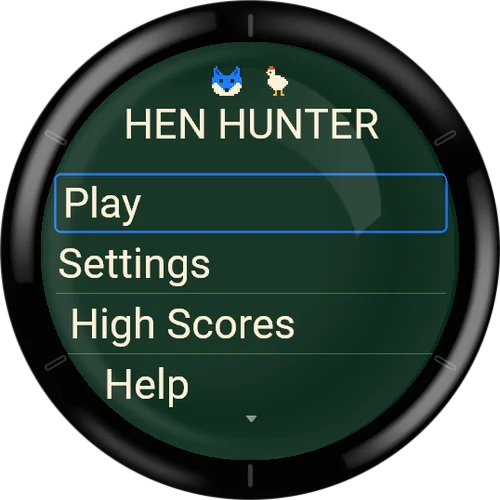
- Play, Settings, High Scores, Help, Quit. Quit (or BACK in this menu) closes the app.
- Pause menu
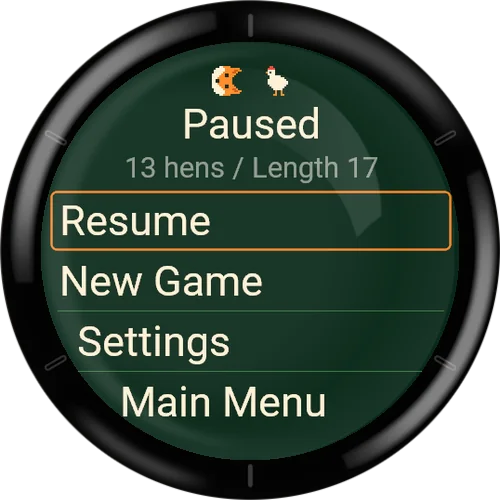
- Opens during a round. It shows hens and length of the current round. Entries: Resume, New Game, Settings, Main Menu. BACK also resumes.
- Confirmation
- New Game and Main Menu ask: Discard the current round? Yes or No (No is preselected). Yes drops the running round.
- Result screen
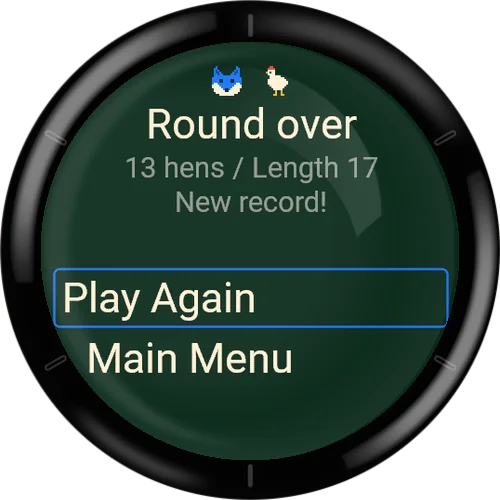
- Appears when a round ends. It shows Round over or the victory message, the hens, the length and, if applicable, New record! or the rank. Entries: Play Again, Main Menu.
- High Scores
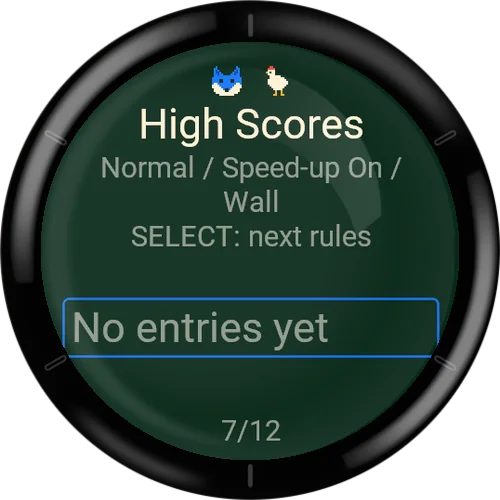
- Shows the top 5 of one rule set, with its rule description (for example Normal / Speed-up On / Wall) and the list number such as 1/12. It opens on the rule set of your current settings. Press SELECT (or tap the entry) to switch to the next rule set. Without records it says No entries yet.
- Help
- Pages with pictures: Goal; Buttons (only on watches with UP/DOWN buttons); Touch (only on watches with a touchscreen); Speed and records.
- Settings
- Three pages: Game (1/3), Display (2/3), Controls (3/3).
- Option list
- Selecting a setting opens a list of its values with a marker on the active one. A short hint explains the setting. Selecting a value saves it immediately and goes back.
Settings: Game
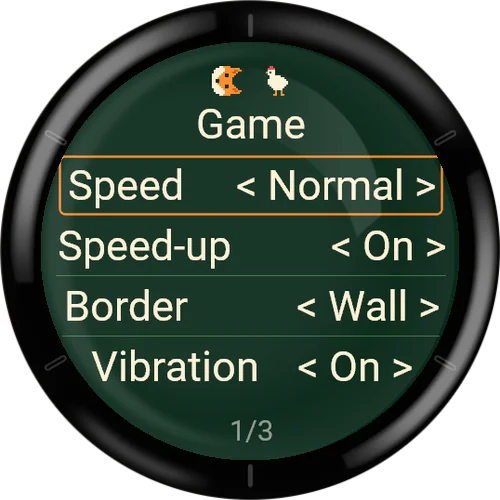
These settings change the rules. Changes are saved at once and apply from the next round.
- Speed
- Slow, Normal (default) or Fast. Base speed of the fox per step.
- Speed-up
- Off or On (default On). On: a little faster every five hens.
- Border
- Wall (default) or Open. Wall ends the round at the edge, Open wraps to the other side.
- Vibration
- Off or On (default On if the watch can vibrate). A short buzz when the fox catches a hen and a longer one at the end of the round. On watches without a vibration motor the entry is greyed out and explains that the watch does not support vibration.
Settings: Display
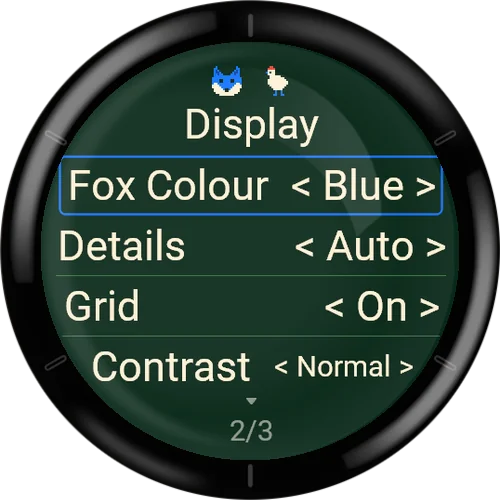
- Fox Colour
- Blue (default), Orange, Red, Green, Violet or Pink. Only the fur colour of the fox changes; cheeks and eyes stay.
- Details
- Auto (default), Reduced or Full. Full shows trees, a checkerboard field and shadows. Reduced leaves them out and draws faster. Auto picks Full on screens that are at least 240 pixels wide and Reduced on smaller ones.
- Grid
- Off or On (default On). Draws subtle cell lines on the field.
- Contrast
- Normal (default) or High. High removes the checkerboard and uses a brighter, thicker frame and brighter grid lines.
- Language
- Deutsch or English. This is the language of the texts in the app. The default is German if the watch is set to German, otherwise English.
Settings: Controls
- Input
- Auto (default), Buttons or Touch. Chooses which inputs steer the fox. Pause and Back always work. Buttons needs UP/DOWN buttons, Touch needs a touchscreen; unavailable choices are greyed out.
- Touch
- Swipe (default) or Tap. Swipe: four directions. Tap: left half turns left, right half turns right. Greyed out on watches without a touchscreen, or when Input is set to Buttons.
- Buttons: Turn
- Information only. UP turns left, DOWN turns right, SELECT pauses, BACK pauses and then goes back. Greyed out on watches without UP/DOWN buttons.
- Show Help
- Opens the help pages.
Small watches and missing hardware
On watches with little memory (about 128 KB for apps), Details Full is limited to Reduced. If you choose Full there, it is marked with a star and a note explains the limit.
If drawing in Full takes too long (more than half of a step time, three times in a row), the game switches to Reduced for the rest of that session. Your setting is not changed.
The game picks the field cell size automatically so that the field, the counter line and the pause area fit on the round or rectangular display.
Without a touchscreen, touch input is not available and the Touch page entries are greyed out. Watches without UP/DOWN buttons (some Venu, Vivoactive models) are steered by touch only; Input Auto then means Touch.
Without a vibration motor, Vibration stays off and cannot be switched on.
Tips
Plan one or two steps ahead. A turn is only applied at the next step, and only one turn can wait at a time.
Start with Slow or without Speed-up to get used to the controls. Use Open for a more relaxed game and Wall for a stricter one.
On a small screen, Grid Off or Contrast High can make the field easier to read.
If your wrist gets in the way, pause with SELECT. The countdown gives you time to get ready again.