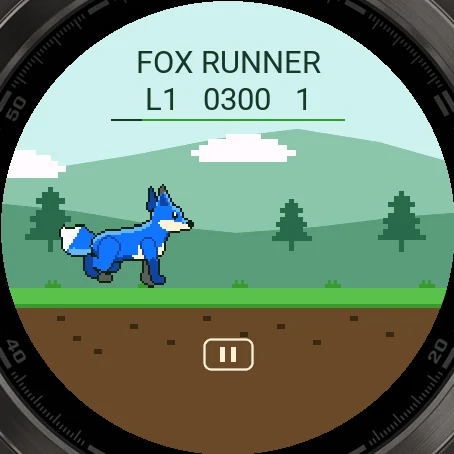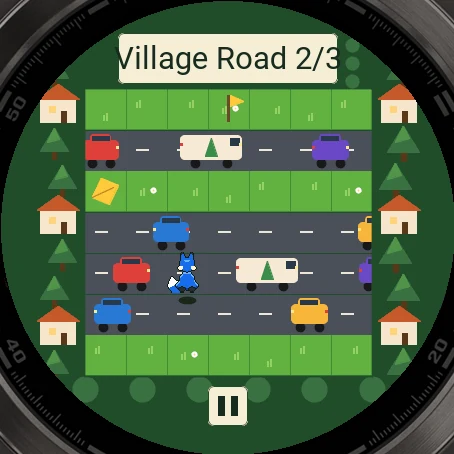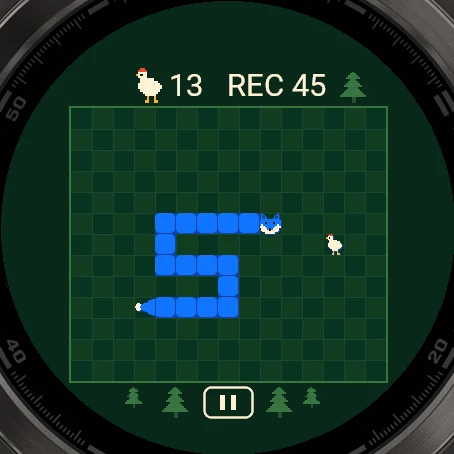
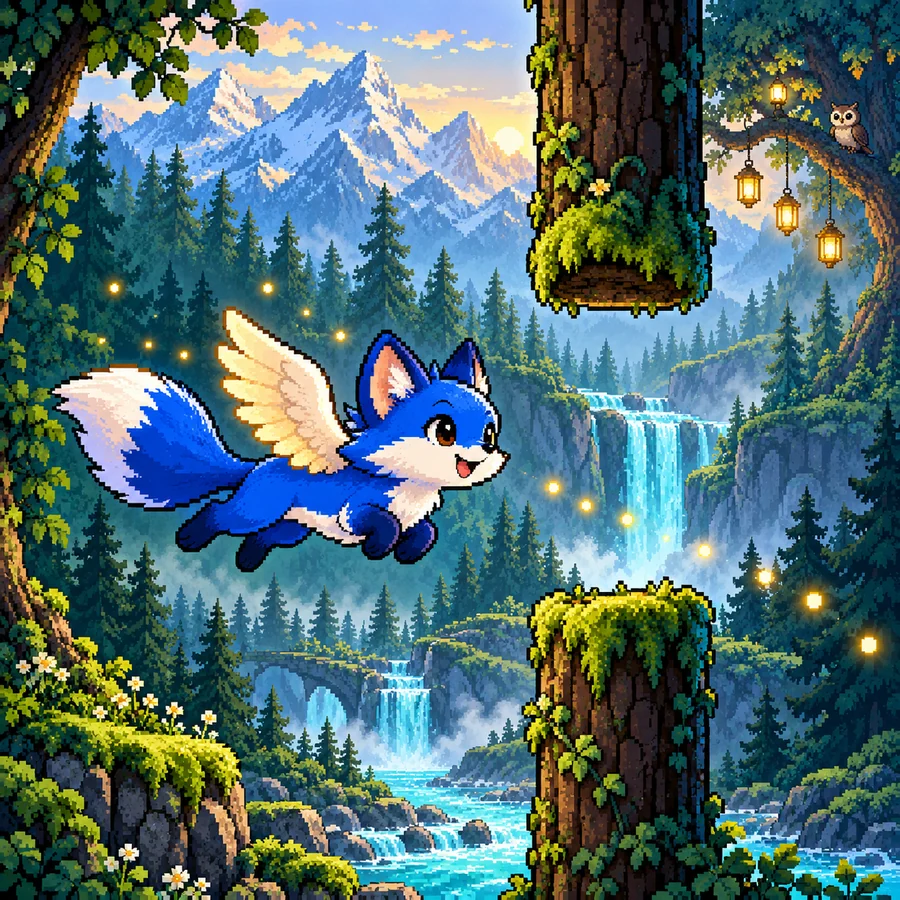
Pictures from the simulator
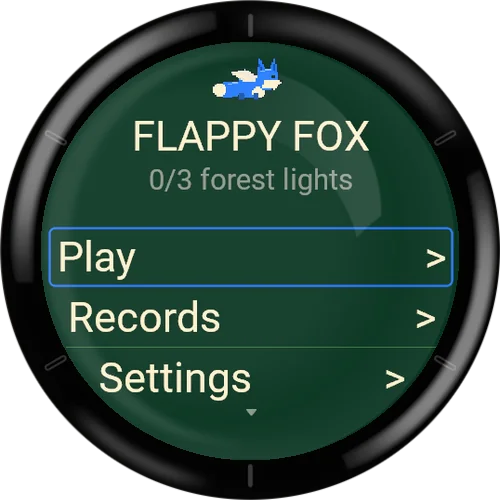
Flappy Fox
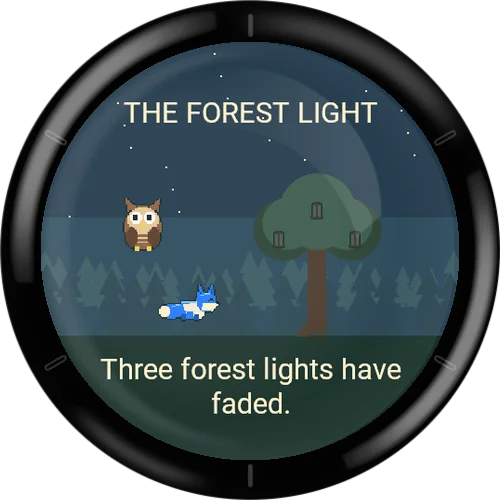
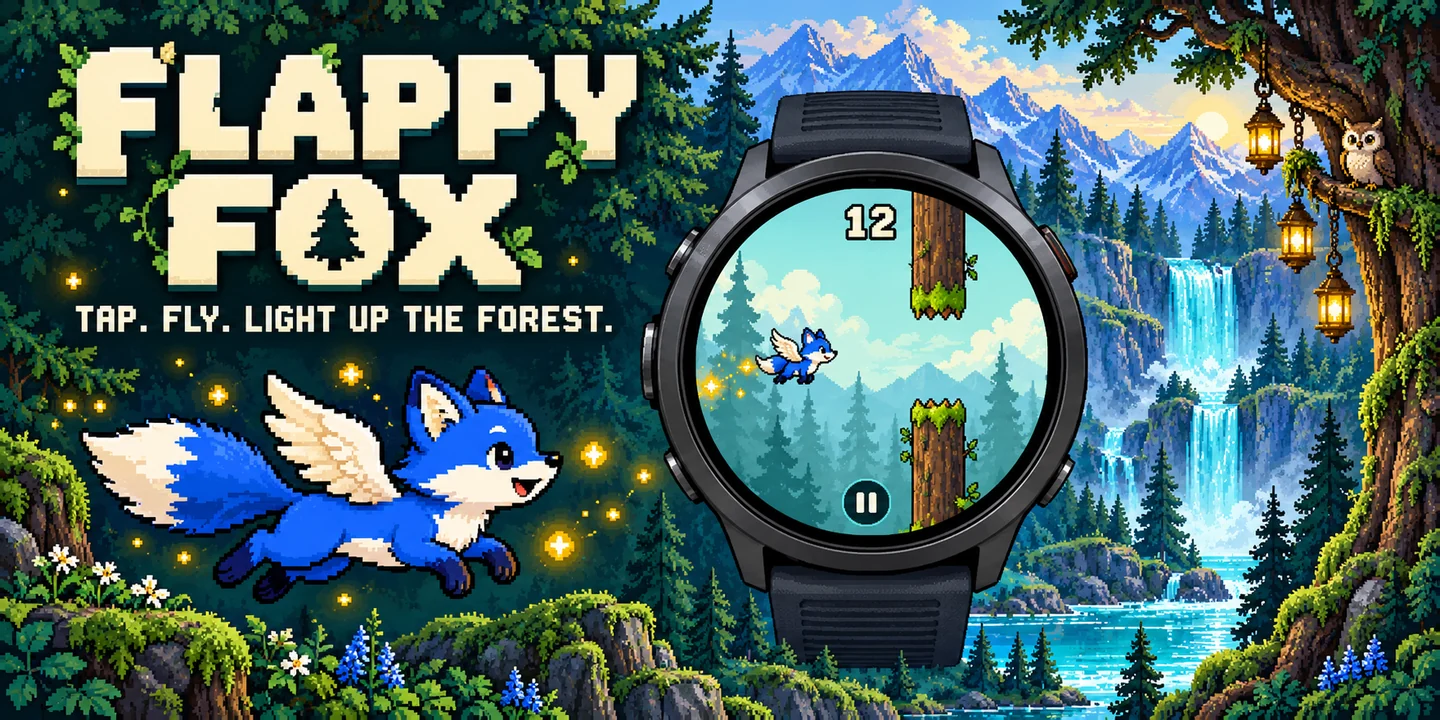
A storm has put out the three forest lights. The guardian owl gives the blue fox a magic feather – with small wings it flies through Forest Path, Cloud Pass and Star Grove.
Every tap is a wing beat. Find all three lights, light the old light tree – then the classic endless flight opens with an online leaderboard.
Free to play: install the game from the Connect IQ Store on your phone or in the Garmin Connect IQ app.
Join in: in the app under Leaderboard → Join. No account, with a player name of your choice.
Free to play, happy to be supported
All my games are free. To keep programming new games I depend on donations. If you enjoy this game, I would be glad about a small contribution.
Go to the donation pageFeatures
- Story with 3 levels, intro and finale
- Classic endless flight with online leaderboard
- Training with bigger openings
- Choose the fur colour
- Touch or button, pause at any time
- Plays offline, German and English
Flappy Fox
Wallpapers
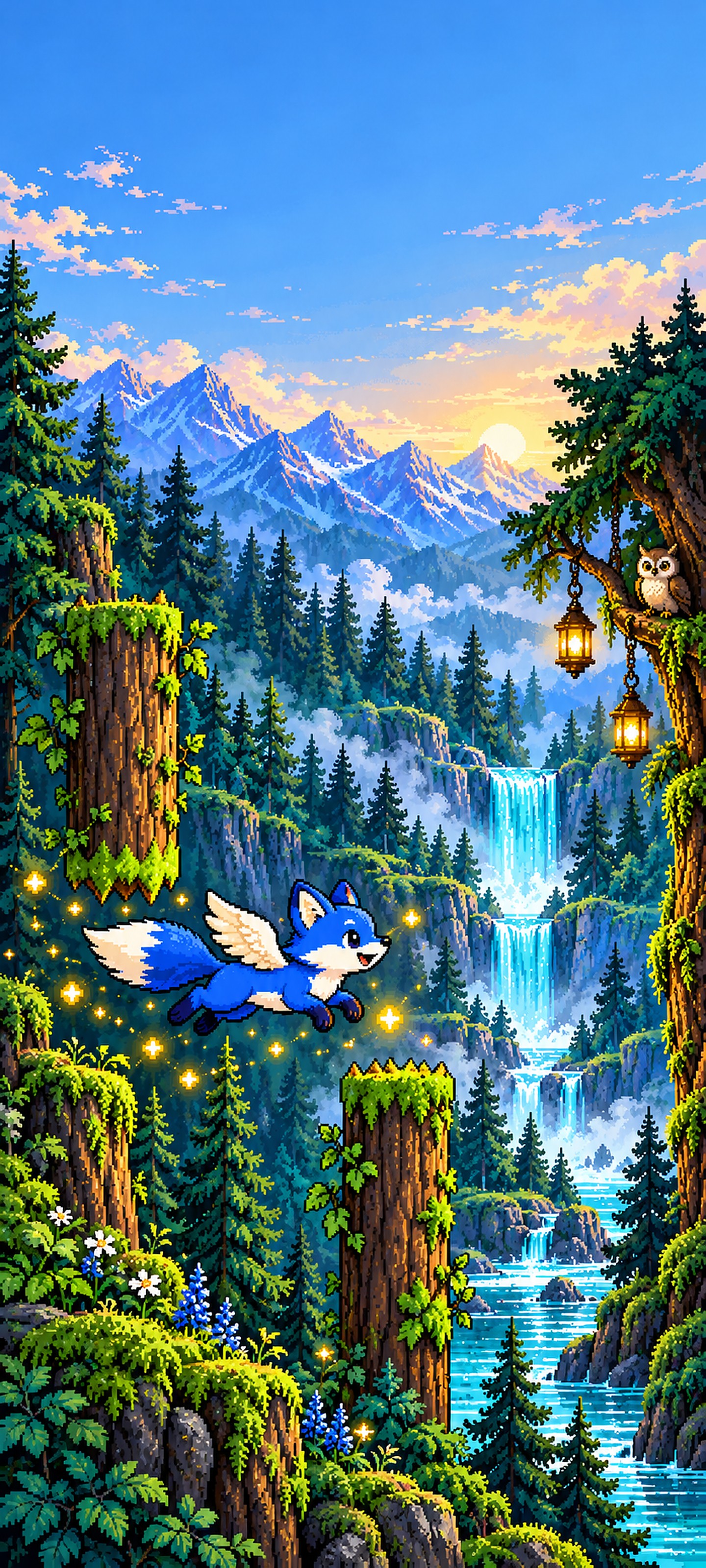
Free phone wallpapers for this game - tap one to download it (1440 x 3200).


Game guide
Everything about the game: how it is played, every menu and every setting.
- How to play
- Goal and scoring
- Game modes
- Story levels
- Online leaderboard
- Menus and screens
- Settings: Game
- Settings: Display
- Settings: Controls
- Small and low-memory watches
- Tips
How to play
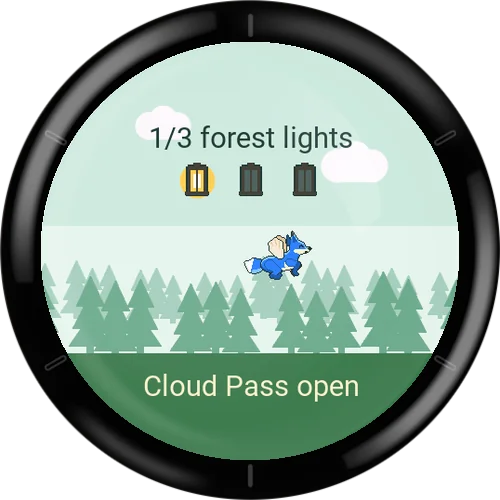
Flappy Fox is a one-tap flying game. The blue fox flies from left to right through a forest. Every tap on the screen or press of the button gives the fox one wing beat upwards. Between the wing beats it sinks.
Fly through the openings between the tree trunks. Touching a trunk, the top edge or the bottom edge ends the flight. Only the body of the fox counts for a hit: tail, ears and wings may overlap an obstacle.
Holding the screen or the button does not help. Each tap is exactly one wing beat, so the rhythm of your taps decides the height.
Before a flight the fox hovers and the screen says "Tap to fly" (on touch watches) or "START to fly" (button watches; some watches say SELECT). Your first tap or press starts the flight and is already the first wing beat. By default a 3-2-1 countdown comes first.
To pause, press BACK or tap the pause button at the bottom of the screen. The flight also pauses by itself if the game is interrupted for more than a short moment. After a pause a 3-2-1 countdown always runs before the flight continues, without a free wing beat.
Goal and scoring
Every pair of trunks that you have passed completely gives one point. A pair that hits you does not count.
In the Story, a level is completed when you have passed all its pairs. In Classic and Training there is no end: you fly until you hit something, and your score is the number of pairs passed.
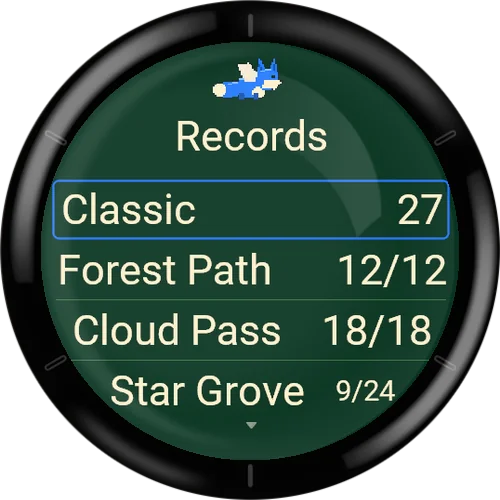
Your best scores are saved on the watch and shown under Records. A new best is announced as "New record!" on the result screen.
Game modes
Story, Classic and Training are chosen in the Play menu.
- Story
- Three levels with an intro and a finale. Each completed level lights one forest light. The Play menu shows how many of the three lights you have found (for example 1/3).
- Classic
- The endless flight. It stays locked until all three forest lights are found; before that the entry shows "Locked". The longer you fly, the faster it gets and the narrower the openings become. The background changes every 25 points (forest, clouds, stars). Classic is the mode with the online leaderboard.
- Training
- Endless flight with wider openings and a calmer speed. Always open. The course is different every time. Training scores are kept only on the watch (shown as "local only") and are never sent online.
Story levels
The story: a storm has put out the three forest lights. The owl gives the fox a magic feather and the flight begins. The intro (about 9 seconds) plays before the first start of level 1 and can be skipped with a tap or a press after the first second. You can watch it again in Help.
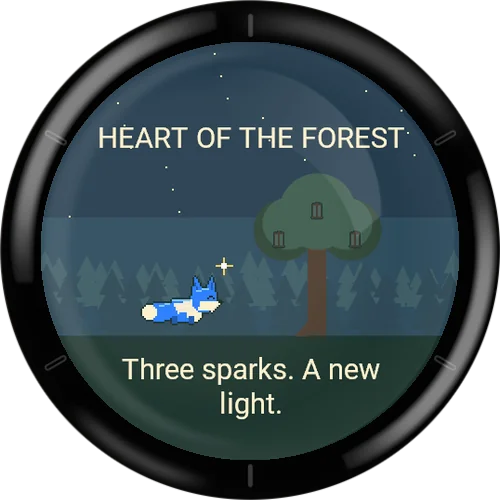
After the last level a short finale plays (about 12 seconds, also skippable). Then Classic is unlocked.
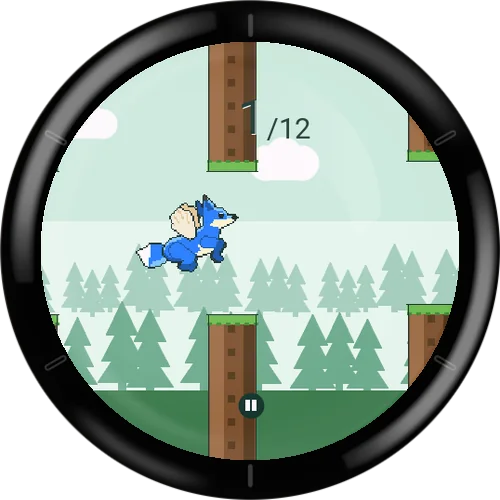
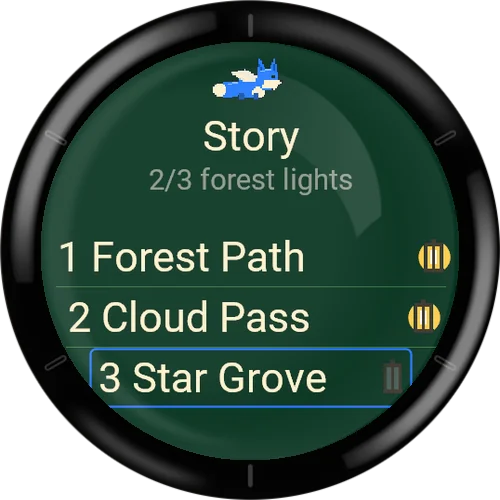
- 1 Forest Path
- 12 pairs of trunks, slow speed, wide openings. Completing it lights the first forest light and opens Cloud Pass.
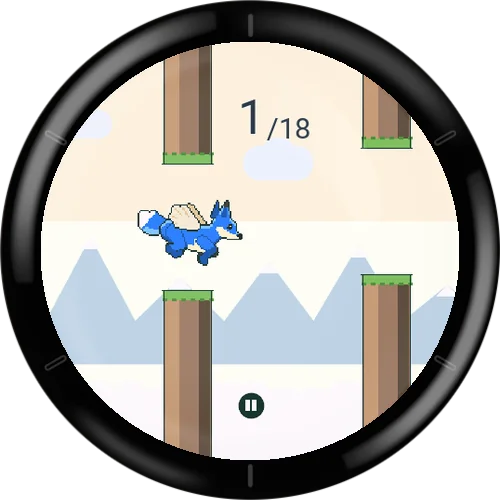
- 2 Cloud Pass
- 18 pairs, a little faster, narrower openings, with rock pillars in the clouds. Opens Star Grove.
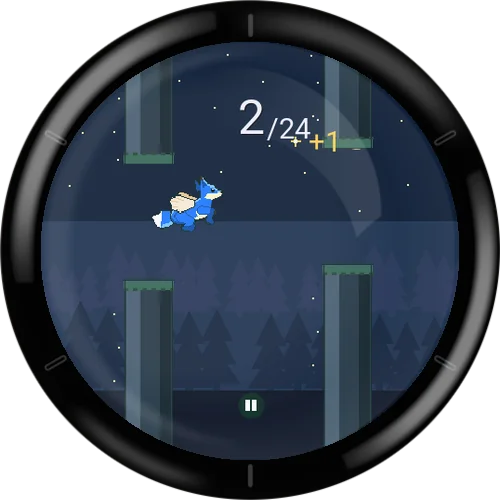
- 3 Star Grove
- 24 pairs at night, the fastest and narrowest of the three levels. Completing it lights the third light and starts the finale.
Online leaderboard
The online leaderboard is optional and belongs to Classic only. There is no account and no e-mail address: when you join, the game creates an automatic player name. Without joining, the game works completely offline and keeps local records only.
You join in Records > Leaderboard setup > Join. After that, every Classic flight asks the server for a run first (the screen shows "Loading ..."). If there is no connection, the flight still starts and is counted locally only ("Offline - local score only").
After an online flight the result screen shows your rank and the gap to the next place. "Pending" means the result could not be sent yet: up to 3 results are kept on the watch and sent again the next time you open Records. "Rejected" means the server did not accept the run.
Records shows the top 10, your own entry marked with ">" and "You", and your neighbours if you are below place 10. If the server cannot be reached, the last saved list is shown with the note "Offline - last list". The leaderboard setup page shows "You fly as" followed by your player name.
- Join
- Creates your anonymous online identity and player name. Shown only while you are not participating. If it fails, "No connection" appears.
- Change alias
- The watch shows a code and a web address. Open the address in a browser and enter the code there to change your player name.
- Sync
- Shows "OK" or the number of results waiting to be sent. Tapping it tries to send the waiting results.
- Delete online data
- After the question "Delete online identity and entries?" (Yes / No, preselected is No) your online identity and entries are deleted and waiting results on the watch are dropped. Your local records, settings and story progress stay. Afterwards you can join again with a new name.
Menus and screens
The app comes in German and English. At first it follows the watch language (German on German watches, otherwise English); you can change it under Settings > Display > Language. In menus, scroll with the UP/DOWN buttons or by swiping, choose with START/SELECT or by tapping a row, and go back with BACK.
- Main menu
- Shows the title and the lights found (for example 0/3 forest lights). Entries: Play, Records, Settings, Help, Quit.
- Play
- Story (shows the lights found, for example 1/3), Classic (your best score, or "Locked" with the note that endless flight opens when all three forest lights are found) and Training (your best score). The entry set under Settings > Game > Mode is preselected.
- Level Select
- Opened from Story. Lists the three levels with a lantern that is lit once the light is found. A level opens when the one before it is completed.
- Pause menu
- Title "Paused" with the current score. Resume (countdown, then the flight continues), Restart, Settings, Main Menu. Restart and Main Menu ask "Discard the current flight?" first (Yes / No, preselected is No).
- Result: Story
- After a completed level (and its short film): "n/3 forest lights" with the note which level is now open, and the entries Next (not after level 3) and Level Select. After a failed flight: "Try again?" with your score out of the total pairs, and the entries Restart and Level Select. BACK leads to Level Select.
- Result: Classic and Training
- Shows the score, "New record!" if it is one, and for online Classic flights the rank, the gap and the status. Entries: Restart, Records, Main Menu. BACK leads to the Main Menu.
- Records
- Best scores of Classic, of each level (as points/pairs, for example 12/12; locked levels are greyed out) and of Training (marked "local only"). Below, under "Online", the leaderboard and the entry Leaderboard setup.
- Help
- How to play (four pages: Flapping, Openings, Pause, The story), Watch intro, Watch finale again (only after all three lights are found) and Reset progress. Reset progress asks for confirmation (preselected is No) and clears the forest lights found and the best scores of the story levels, which locks Classic again. Classic and Training records, settings and online data stay.
- After the finale
- When the finale ends you see "The forest shines again." with 3/3 forest lights and "Endless flight unlocked". Entries: Classic, Level Select, Watch finale again, Main Menu.
Settings: Game
Settings has three pages: Game, Display and Controls. Choose a row to open its options; the option you pick is saved at once. You can also open Settings from the pause menu; changes of the mode then apply from the next flight.
- Mode
- Options: Story, Classic, Training. Preselects the entry in the Play menu. Classic cannot be chosen until all three forest lights are found; tapping it shows why.
- Vibration
- Options: Off, On. A short buzz when a flight ends in failure or success. On by default if the watch can vibrate; otherwise the row shows "This watch does not support vibration."
- Countdown
- Options: Off, On (default On). Shows 3-2-1 before a new flight. With Off the fox hovers and waits for your first tap. After a pause the countdown always runs.
- Records
- Opens the Records screen (View).
Settings: Display
These options change only the look of the game. The rules and scoring stay the same.
- Fox Colour
- Options: Blue, Orange, Red, Green, Violet, Pink. Changes the fur colour of the fox; cream parts, eyes, wings and outline stay. A preview fox is shown above the list.
- Details
- Options: Auto, Reduced, Full. Full shows clouds, hills and trees in the background. Auto chooses by the watch: Full on screens that are at least 240 pixels wide, otherwise Reduced. On watches with little memory Full is limited to Reduced (marked with * and a note).
- Contrast
- Options: Normal, High. High strengthens the outlines and leaves out the backgrounds.
- Language
- Options: Deutsch, English. Language of all texts in the app.
Settings: Controls
The controls page shows which inputs your watch offers.
- Input
- Options: Auto, Touch, Buttons. Decides what makes the fox flap. Auto uses touch and button where the watch has them. With Touch only taps flap, with Buttons only the button flaps. Pause and BACK always work.
- Touch
- Information row: a tap anywhere on the screen lets the fox flap, the pause button at the bottom pauses. If the watch has no touchscreen, the row says so.
- Button
- Information row: shows the flap button of your watch (START or SELECT). BACK pauses. If the watch has no suitable button, the row says tapping is used.
- Show Help
- Opens the Help menu.
Small and low-memory watches
The game needs a round watch with at least 512 KB of memory (or a square Venu Sq 2 / X1); watches with 128 KB are not supported.
On watches with little memory the Full background detail is not available and is limited to Reduced. If a watch draws the picture too slowly during a flight, the game also switches to the reduced look by itself.
Options that a watch cannot offer are greyed out: Vibration without a vibration motor, Touch without a touchscreen, Buttons without a flap button. Tapping a greyed-out row explains why.
Tips
Tap in a steady, light rhythm instead of in bursts. One tap is always the same wing beat.
Use Training to get a feeling for the wing beat before you try Classic. It is always open and has wider openings.
The level openings are checked to be passable. If you fail, you can restart the level right away from the result screen.
Use the pause button or BACK whenever you are interrupted. The countdown after a pause gives you time to get ready.